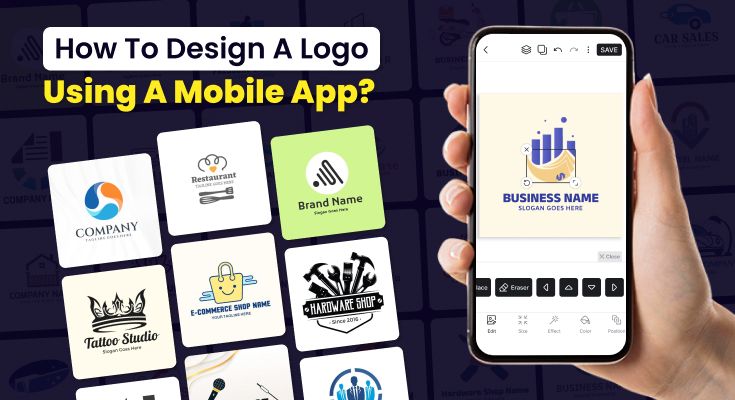
Do you want to create a strong brand identity for your business? In this guide, we’ll walk you through how to design a logo using a mobile app with the help of an online logo maker. With just a few taps, you can build a professional logo in minutes.
Modern logo maker apps for mobile come packed with features, tools, and design ideas that make it easy for anyone to create a stunning, memorable logo that truly represents their brand.
This comprehensive guide will take you step by step through the entire logo design process using our innovative mobile application so that you can bring your brand vision to life effortlessly.
How to Create a Professional Logo Using a Mobile App? Step-by-Step Process
Designing a professional logo for your brand is easier with the Logowiz mobile app. Getting started with Logowiz is straightforward and designed for users of all experience levels.
The app guides you through each step of the design process systematically.
Step 1: Choose the Right Logo Design App
Picking the right logo maker is the first step toward building a strong brand identity. Not every app offers the same level of creativity and flexibility, so it’s important to choose wisely.
However, there are popular logo design platforms available in the market like Logowiz, Canva, Brandmaker, Looka, and more, but if you are looking for the best option that is efficient, quick, and easy to use.
Starting with the Logowiz AI logo maker app might be a good choice for you.
First, download the Logowiz app from the Play Store. The app is available for both iOS and Android platforms and requires minimal storage space. Once installed, create your free account to access all features.
Android-specific features
- Offers advanced editing tools, including photo filters, textures, 3D rotation, resizing, cropping by shape, image background remover, and image eraser.
- Provides all styles of pre-made logo templates, as well as hundreds of modern, artistic, and professional logo fonts to make your name stand out.
- A library of cool icons, shapes, and stickers to make your symbol more creative.
- You can also keep your design transparent or with a background, apply 3D effects, shadow, and more.
- It allows you to download your creation in HD quality.
iOS-exclusive capabilities
If you’re using an iPhone, you can download the Logowiz – Logo maker app from the App Store and access all premium design features with seamless Apple ecosystem integration.
- Offers a sleek and intuitive interface optimized for iPhone and iPad, making logo design faster and smoother.
- Provides advanced customization tools, including gradient color palettes, typography adjustments, and real-time previews of your logo on business cards, mockups, and social media posts.
- Includes a rich collection of professional templates, premium fonts, and creative symbols tailored for iOS users to create modern and stylish logos.
- Allows seamless iCloud integration so you can save, sync, and access your logo designs across all Apple devices.
- Exports your finished logo in multiple formats (PNG, JPEG, SVG) with HD quality, ready for both digital and print use.
Step 2: Define Your Brand Identity
Before diving into design, take time to define your brand identity. Consider these essential questions:
- What industry does your business operate in?
- What emotions do you want your logo to evoke?
- Who is your target audience?
- What are your brand values and personality traits?
- What colors represent your brand best?
These answers will guide your design decisions throughout the process.
Step 3: Choose Your Design Approach
Logowiz offers multiple design approaches to suit different preferences:
- AI-assisted design: Let our artificial intelligence create logo suggestions based on your inputs. This approach is perfect for beginners who want professional results quickly.
- Template-based design: Browse our extensive template library and customize existing designs to match your brand. This method offers a balance between guidance and creativity.
- Custom design creation: Start from scratch using our comprehensive design tools. This approach provides maximum creative control for experienced users.
Step 4: Generate Logo Ideas with AI
This app uses the power of AI to instantly create creative logo ideas for businesses that match your brand’s identity. Instead of starting from scratch, you get a variety of professional options to choose from.
- Enter your brand name and industry to get personalized logo suggestions.
- Browse multiple styles – modern, minimal, creative, or classic.
- Get instant inspiration without needing design experience.
- Select and refine the creative idea that best fits your vision.
AI takes the guesswork out of logo design, giving you a strong starting point to customize further.
Step 5: Customize Your Logo Design
Once you choose your desired logo design, you can easily edit or customize it according to your requirements.
- Fonts: Choose from a wide variety of professional fonts
- Colors: Experiment with unlimited logo color combinations to reflect your brand’s style and make it memorable.
- Icons: Swap or resize icons to better reflect your brand identity
- Backgrounds: Adjust logo shapes, backgrounds, or frames
- Effects: Add shadows, 3D effects, outlines, or glow for extra depth
- AI feature: Access Logowiz’s AI-recommended icon library
- Add text: Include your company’s name or a slogan. For a strong visual hierarchy, make your business name the largest text element.
Step 6: Add Your Logo to the Mockups
Using this best logo design app for mobile, you can bring your logo to life by adding it to realistic mockups. This helps you visualize how your design will look on different products and marketing materials before finalizing it.
With Logowiz, you can:
- Apply your logo to mockups like T-shirts, mugs, business cards, posters, and packaging.
- Preview in real-world settings to see how your brand identity stands out.
- Experiment with multiple mockup styles to find the best fit for your business.
- Save and share mockup previews with your team or clients for quick feedback.
This step ensures your logo isn’t just a design – it’s a brand-ready asset that works across real-life applications.
Step 7: Save and Export Your Logo
Once you’re happy with the final design, Logowiz makes it easy to save and export your logo in high quality. You can download it instantly and use it across digital and print platforms without losing clarity.
With Logowiz, you can:
- Save your logo in multiple formats (PNG, JPG, SVG, PDF).
- Export in high resolution for print, websites, and social media.
- Keep transparent backgrounds for easy use on any material.
- Your designs will be saved in the storage
- Share directly via email, WhatsApp, or other apps.
This way, your logo is always ready for branding – from business cards to billboards.
Recommended: If you’re unsure whether to use a logo design app or hire a professional designer, be sure to check out this guide.
Why Use Logowiz’s Advanced Features for Professional Results?
Logowiz offers advanced features that help you create sophisticated logos comparable to professional design work. Understanding these features maximizes your design potential.
AI-Powered Logo Generation
Our artificial intelligence analyzes thousands of design elements to create unique logo suggestions tailored to your business. Here’s how to leverage this feature effectively:
Provide Detailed Information: The more specific information you provide, the better our AI performs. Include:
- Detailed business description
- Target audience demographics
- Preferred style and mood
- Color preferences and restrictions
- Specific symbols or icons you want included
Iterate and Refine: Don’t settle for the first suggestion. Use the refinement options to:
- Adjust color schemes
- Modify typography choices
- Change layout arrangements
- Explore different style variations
Advanced Customization Tools
Logowiz provides professional-grade customization tools accessible through simple mobile interfaces:
Layer Management: Organize your design elements using layers for precise control:
- Background elements
- Text components
- Graphic elements
- Effects and overlays
Alignment and Spacing: Achieve professional polish using our alignment tools:
- Grid snapping for precise positioning
- Automatic spacing recommendations
- Symmetry guides for balanced designs
- Proportion adjustments for visual harmony
Effects and Filters: Enhance your logo with subtle effects:
- Drop shadows for depth
- Gradients for modern appeal
- Transparency effects for layered looks
- Texture overlays for unique finishes
How to Test and Refine Your Logo Design for Effective Results?
Creating your logo is an iterative process. Testing and refinement ensure your final design effectively represents your brand and resonates with your target audience.
1. Getting Feedback on Your Design: Gathering feedback helps identify potential issues and improvement opportunities.
2. Target Audience Testing: Show your logo to representatives of your target market:
- Ask about first impressions and associations
- Test recognition and memorability
- Gather feedback on color and style preferences
- Assess professional appearance and credibility
3. Peer and Professional Review: Seek input from business colleagues and design professionals:
- Request honest critiques of design elements
- Ask about scalability and versatility concerns
- Gather suggestions for improvement
- Validate industry appropriateness
4. A/B Testing Different Versions: You can run A/B testing with your logo to see which one makes users engage with your brand. So, create multiple logo variations and test their effectiveness.
5. Version Comparison Testing: Develop 2-3 different approaches and compare:
- Different color schemes
- Alternative typography choices
- Varied layout arrangements
- Different levels of complexity
6. Application Context Testing: Test your logo variations across different contexts:
- Website headers and navigation
- Business cards and stationery
- Social media profiles and posts
- Marketing materials and advertisements
7. Iteration and Improvement Process: Use feedback to refine your design systematically:
Look for patterns in feedback:
- Consistent concerns or suggestions
- Recurring positive responses
- Areas of confusion or misunderstanding
- Platform-specific performance issues
8. Make Strategic Adjustments: Implement changes thoughtfully:
- Address major concerns first
- Maintain design consistency
- Test changes with the same audience
- Document version changes for future reference
Frequently Asked Questions
Easily make a logo with the Logowiz AI logo generator app. Simply enter your brand name, pick a style, and let AI generate ideas. Customize any elements, then preview on mockups. Finally, save and export in high-quality formats.
We tested out the most popular logo maker apps. But apps like Logowiz stand out because they use AI to generate personalized logo ideas, provide a range of editing tools, a library of pre-made templates, mockup previews, high-quality downloads, and more features.
A good logo design app should have AI-powered logo generation, a variety of fonts and icons, and customization tools for colors, shapes, and layouts. It should also let you preview logos on mockups like T-shirts or business cards, and export in multiple formats. Bonus features like transparent backgrounds, Google Fonts integration, or cloud storage sync can make the experience much smoother.
No, you don’t. Most logo design apps are built for beginners and come with AI-powered tools that generate ready-to-use logo ideas. You simply enter your brand name, pick your industry or style, and the app suggests designs you can customize with fonts, colors, and icons. This makes logo creation accessible even if you have zero design skills.
Yes, many apps now offer mockup previews. You can instantly see how your logo looks on T-shirts, mugs, business cards, posters, or packaging. This helps you test your design in real-world scenarios and make adjustments before finalizing it.
On average, you can create a logo in 10 – 30 minutes, depending on how much customization you want. AI logo apps generate instant design suggestions, so most of your time goes into refining fonts, colors, and layouts until you’re satisfied.
Conclusion
This is the process of how to design a logo using a mobile app, and with the app, you can create a professional logo in just a few minutes – directly from your phone.
The key to successful mobile logo design lies in understanding fundamental design principles while leveraging advanced app features effectively. By following the strategies and techniques outlined in this guide, you can create logos that not only look professional but also effectively communicate your brand values and resonate with your target audience.
Among the top logo design apps for small businesses, Logowiz stands out because of its powerful edition tools, template library, and flexibility to experiment with different approaches.
With the right approach and tools, your mobile-designed logo can compete with any professionally created design while saving you time and money.